A free AI video generator earns its keep on the retry. The first clip can look fine until the camera moves the wrong way. Then you find out whether the site gives you another go or asks for a card.
Four of these tools run in a browser, so start there if you have an everyday laptop. Two run on your own computer if you already have a compatible graphics card. The same question from Tech Unbloated’s free AI image generator guide applies here: whose machine is doing the work, and what do you give up to use it?
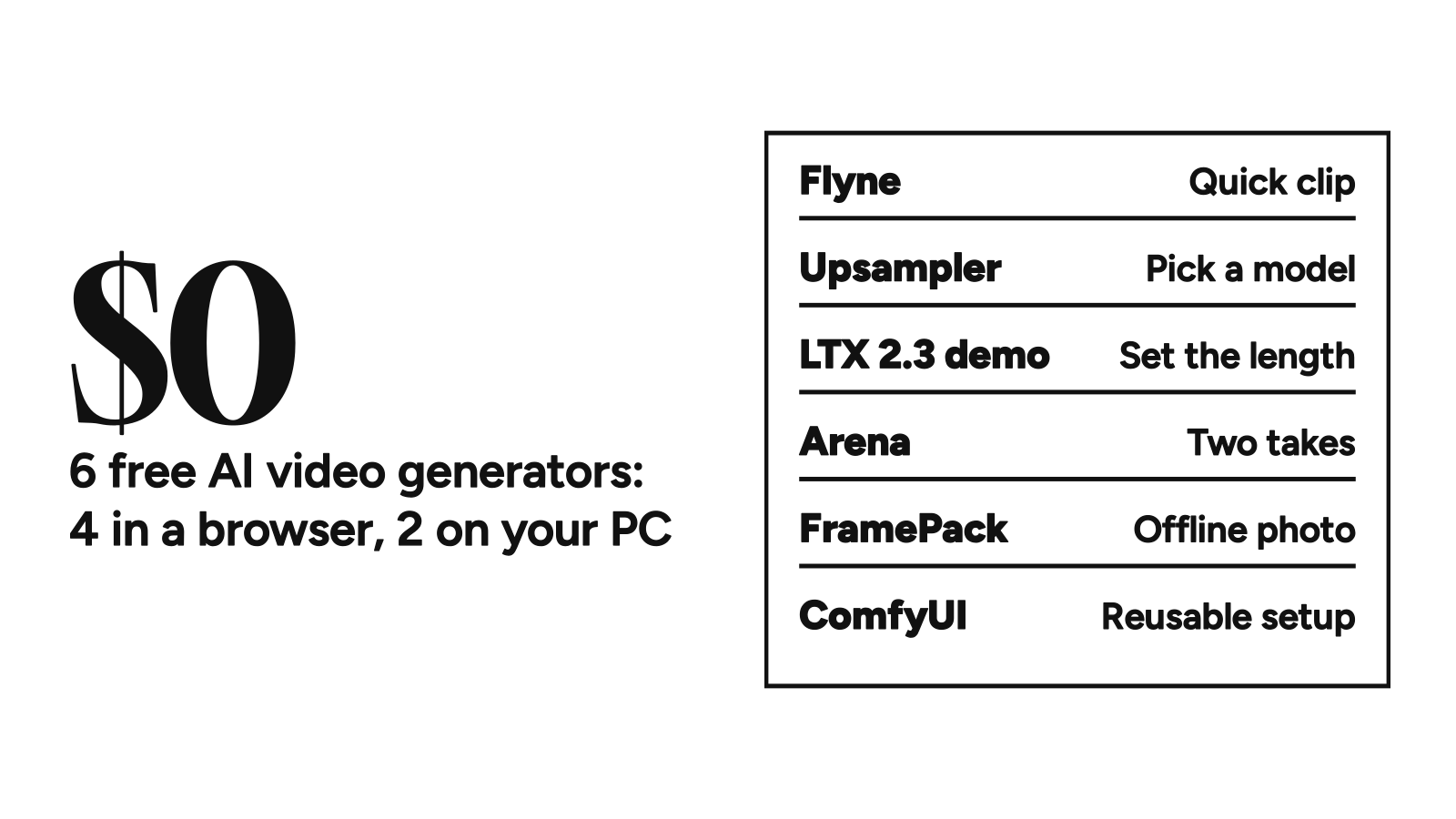
Quick answer: Try Flyne for a short clip without an account. Pick Upsampler if you want to choose a model and try a clip with sound, or the Hugging Face demo if you want more control over length. Arena gives you two takes from different models for one prompt. You can try all four without buying credits.
Free access and limits checked November 22, 2026. This is a comparison of public tool interfaces and documentation, not a hands-on generation or export test.
Free AI Video Generator Picks Compared
These routes cost $0 to use and don’t depend on a one-time trial balance. Some have daily limits. If you need to keep generating without waiting for a reset, use a local tool on hardware you already own or accept the limits of a free browser queue.
| Tool | Best for | Account | Free limit or hardware |
|---|---|---|---|
| Flyne | Quick clip or photo transition | No | 5 sec, 480p; free queue |
| Upsampler | Pick a model; try sound | No | About three default LTX 2.5 clips/day |
| LTX 2.3 on Hugging Face | Adjust clip length and add sound | Optional for ZeroGPU | Shared daily GPU time |
| Arena Video | Compare two takes | Yes | Two generations per 24 hours |
| FramePack | Animate a photo offline | No service account | 6 GB of graphics memory; supported NVIDIA GPU |
| ComfyUI + Wan 2.2 | Reuse a local workflow | No service account | 8 GB graphics memory target for the 5B template |
Free AI Video Generators With No Sign-Up
Flyne: Start Here for a Quick Clip
Flyne’s free tool runs MiniMax H3 at one resolution and length. Start with a prompt, or upload the first and last images to guide the transition. A photo of a closed box and another of it open give the model something more specific to work with than “unbox this product.”
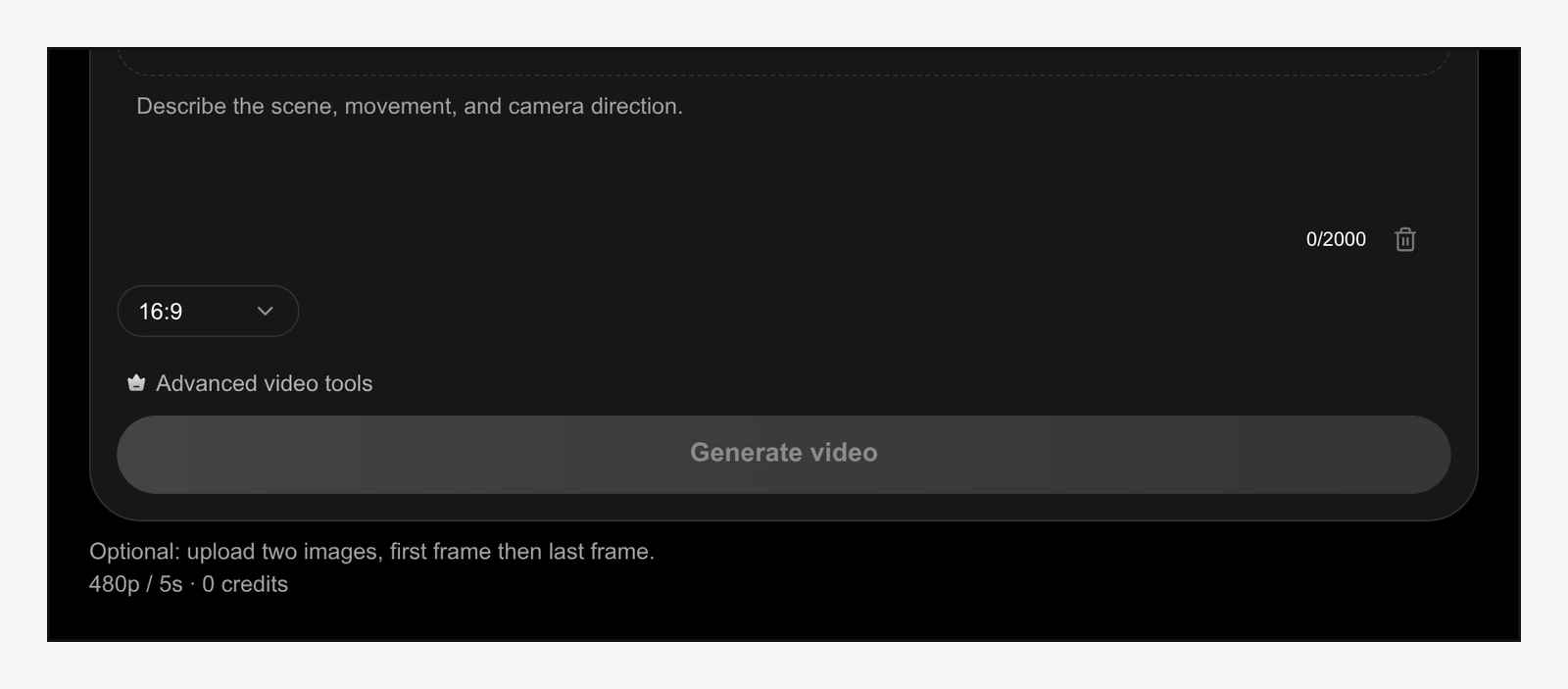
The form shows 0 credits, with widescreen, vertical, and square options. Flyne says there’s no generation-count cap and no visible watermark. A free job may sit in a queue, and you’ll complete a verification check before it starts. The free tool page doesn’t establish commercial-use rights, so keep the first test personal and use images you’re comfortable uploading.
Upsampler: Choose the Model Before You Generate
Upsampler lets you pick from LTX and Wan models before you spend any of your free GPU time. Try LTX if the clip needs sound. For a transition with a specific ending, the page lists the larger Wan 2.2 option as accepting a last frame.
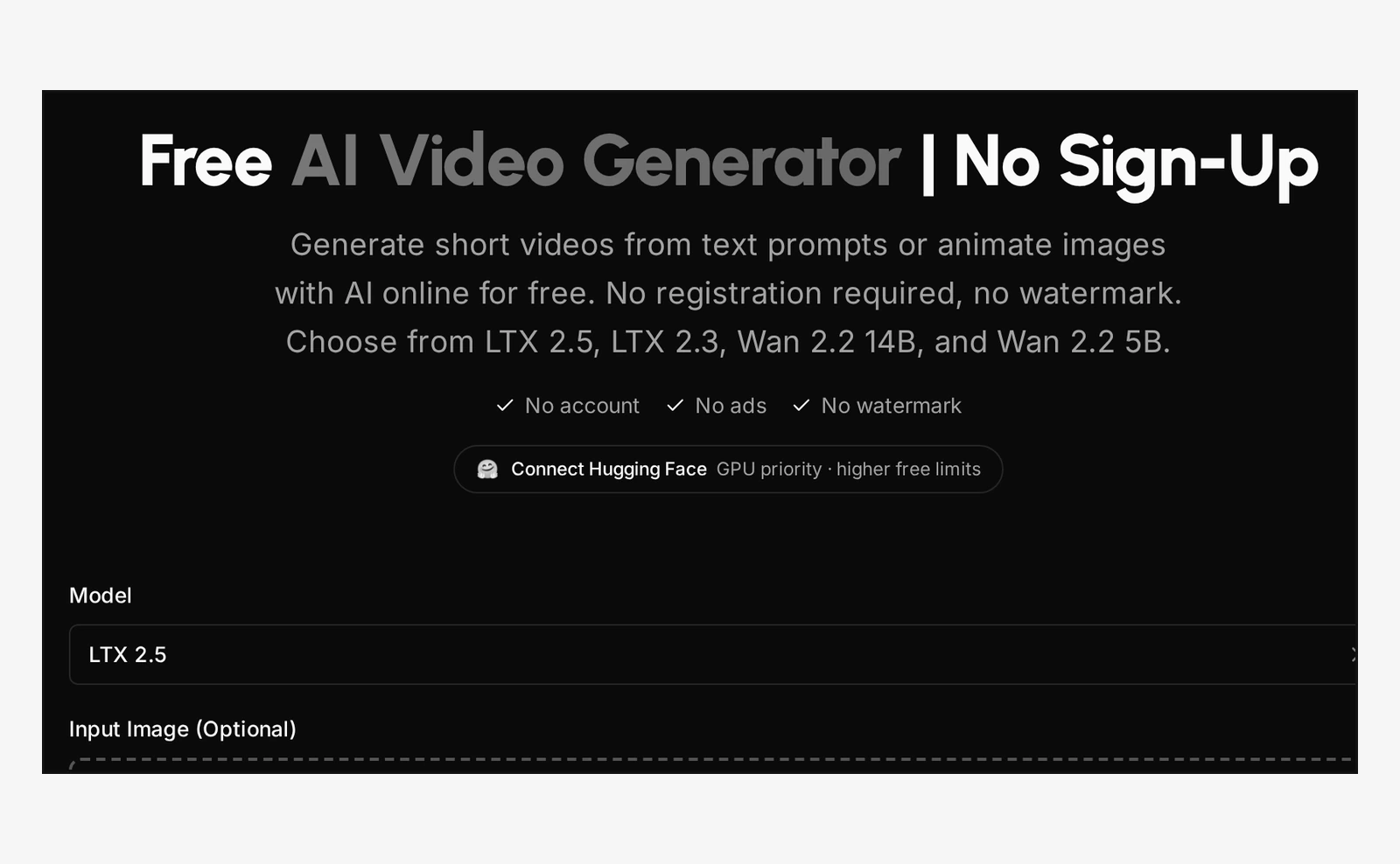
The free tool says it exports without a watermark and offers two- to five-second clips. Its example allowance covers about three clips at the default two-second setting on LTX 2.5. Treat that as an estimate: the model and settings change how much of the allowance a job uses. When you run out, you can wait for more free time.
Pro Tip: Connecting your Hugging Face account boosts your free GPU limits.
Free Text-to-Video and Image-to-Video Demos
Hugging Face: LTX 2.3 Without Installing It
The LTX 2.3 demo interface accepts a prompt, an optional image, and a clip length. It generates video with sound. This is the route to try if a fixed five-second clip won’t fit the edit you have in mind.
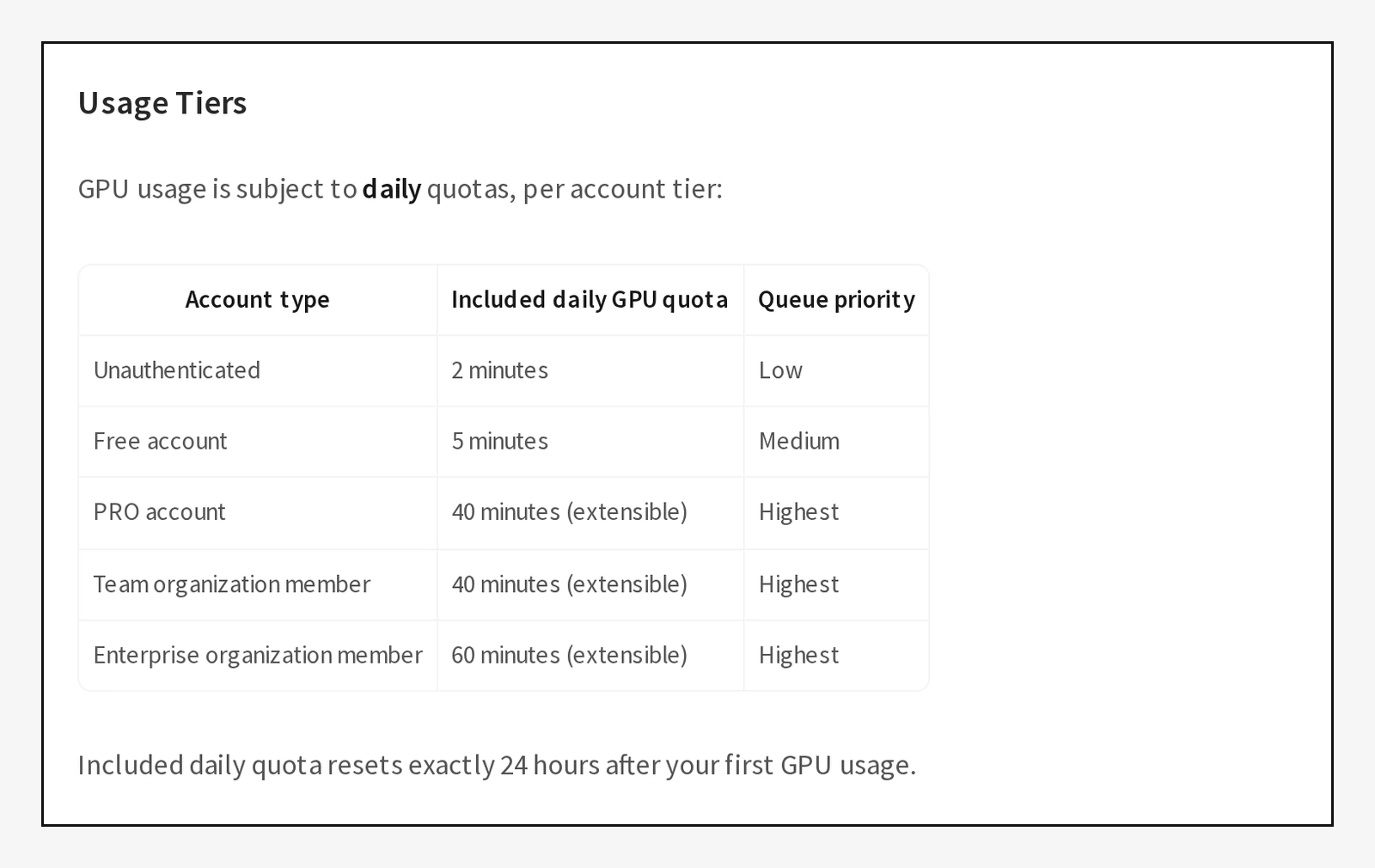
The catch is shared compute. Hugging Face ZeroGPU gives logged-out visitors two minutes of GPU time and free accounts five minutes, resetting 24 hours after first use. That’s processing time, not minutes of finished video. The Space was running when checked, but your ability to start a job depends on the queue and how much time it requests. The High Resolution box is ticked by default, so untick it for the first try.
There are more AI video generation Spaces on Hugging Face that you can explore.
Arena Video: Get Two Takes From One Prompt
Arena starts two anonymous models from the same prompt and asks you to vote for the better clip. You can add one image, but you can’t choose the models or tell Arena to use that image as the first or last frame. The help page puts typical clips at five to eight seconds and the limit at two generations per 24 hours. It doesn’t say whether one two-model comparison counts as one or two.
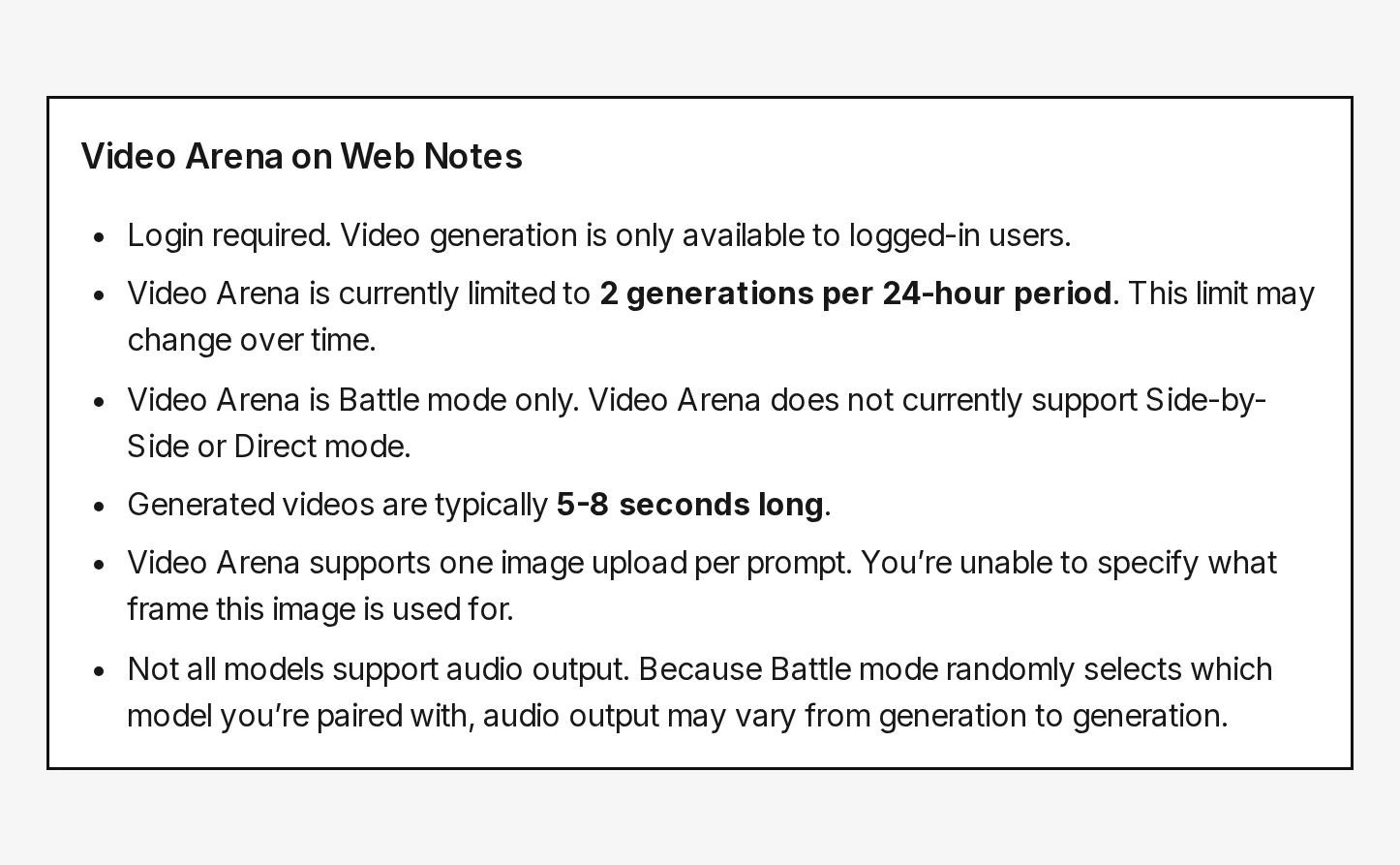
Use it to see how differently two models handle the same direction. For example, ask for a slow push toward a steaming mug and see which model keeps the mug steady. Keep client footage and private photos out of the prompt: Arena’s terms grant it broad rights to use submitted content. The public help page doesn’t establish a watermark-free download, so treat Arena as a comparison tool first.
Two Free Local AI Video Generators for a PC You Already Own
FramePack: Animate a Photo on a Smaller Nvidia Card
FramePack builds a clip in sections and previews frames as they arrive. The official project lists compatible NVIDIA RTX 30-, 40-, and 50-series hardware and offers a packaged Windows download; Linux users set it up with Python. Allow room for more than 30 GB of model downloads.
Start with a still and one movement. The project shows how a longer clip can fit in limited graphics memory, but fitting and finishing quickly are different things. Get the download from the project’s GitHub page; the developer says FramePack has no official hosted service.
ComfyUI + Wan 2.2: Save a Setup You Can Rerun
Pick the official Wan 2.2 5B template if you want both text-to-video and image-to-video. ComfyUI says it should fit on a card with 8 GB of graphics memory using its built-in offloading, which moves some work out of the GPU’s memory. That guidance covers this template only; the larger 14B workflows are separate.
Start with the template as supplied. Once it makes a short clip, save it and change only the prompt or starting image. That gives you a useful comparison between takes, with fewer chances to spend the evening debugging someone else’s node graph. If your laptop has no compatible graphics card, stick with the browser picks.
Why the Familiar “Free” Picks Didn’t Make the List
Invideo is useful for a narrated video assembled from a script, footage, captions, and music; its credit guide explains how generation draws on an allowance. Canva is handy when the clip goes into a design, but its FAQ lists limited monthly Create a Video Clip access for eligible plans, with Canva Free absent from that list.
Adobe Firefly has a daily free allotment. Pixlr advertises watermark-free exports but asks for an account and doesn’t specify the free video allowance on that page. Raphael says signed-in free users get up to 10 free 480p, four-second clips per 24 hours and reserves commercial rights for paid plans. Those are usable options for some jobs; the browser picks above give you a clearer reason to pick one, from a no-account retry to a blind model comparison.
For your first clip, use a photo you can share and ask for one movement. Download the result before you build an edit around it. A promising preview is no use if you can’t get the file out.

Ali Arslan
Ali began his journey as a full-time Tech Journalist in 2021. He’s been a tech enthusiast all his life, starting with a 286 PC gifted to him at the age of 7.
With time, he’s grown into a power user of Android, Linux, Windows, and all things AI, which are the main focus of his writing here at Tech Unbloated. He’s also got a proficient track record for bricking (and sometimes unbricking) Android phones while trying to push the hardware and software to their limits.
Ali has an Advanced Diploma in Business Management from London, UK, and is an English Literature graduate from Punjab University, Pakistan. Other than Tech Unbloated, he’s written for big tech publications like MakeTechEasier, MakeUseOf, How-To Geek, and LimeWire—however, most of his previous work was as a ghostwriter for high-profile clients.
Before becoming a full-time writer, Ali tried his luck at music production, graphic design, teaching, business management, web development, and dropshipping. His writing often reflects all these experiences he’s had in life.
Discussion
Corrections, disagreements, and the thing I missed. Comments are read before they go up.
No comments yet. Go on—be first, and make it count.
Comments stay off until you say so.
Enable comments in cookie preferences to read and join the thread. No login. No ads in the box.