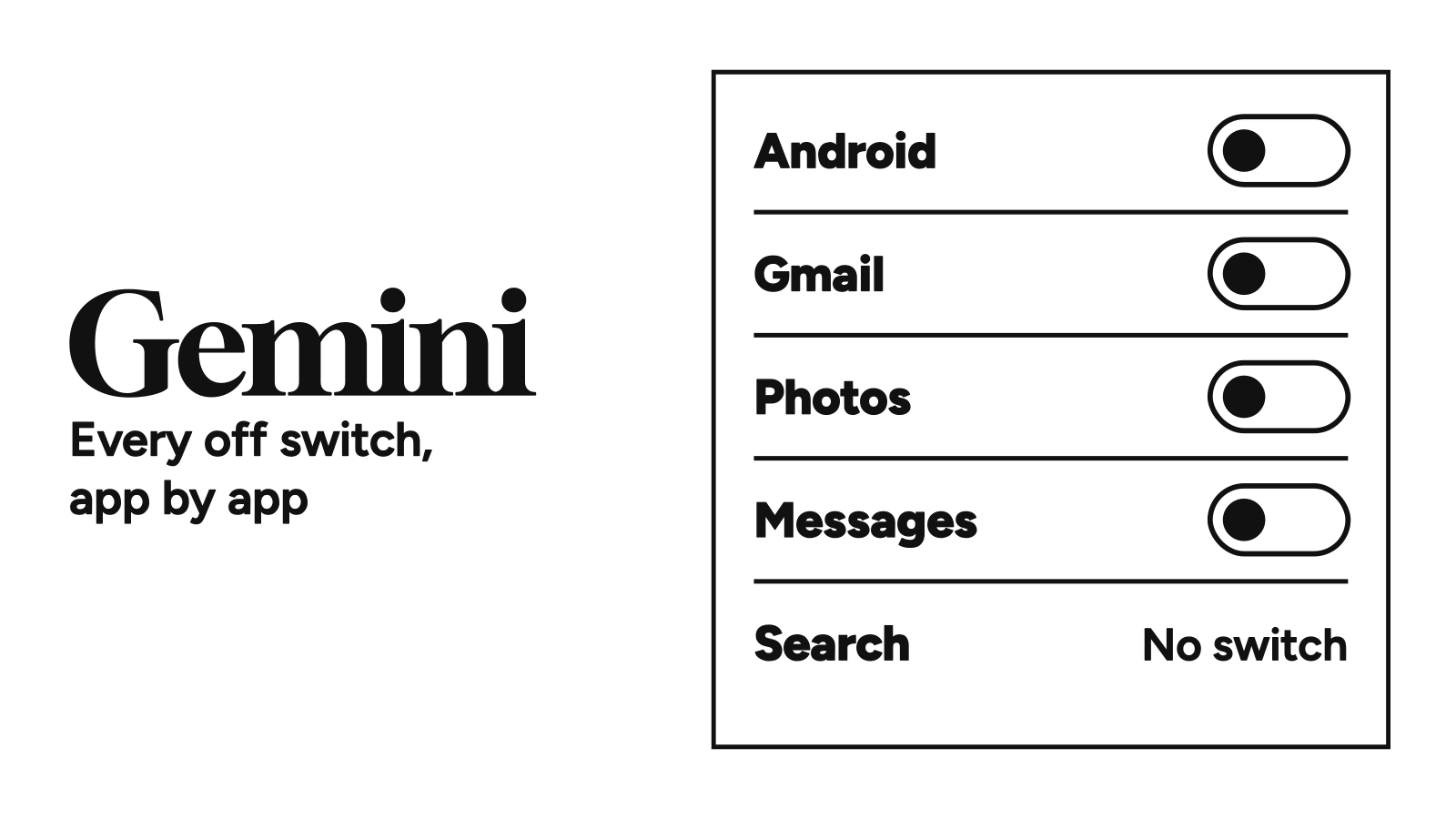
There’s no one-tap master switch to turn Gemini off. Google wired it into your power button, your inbox, your photos, and your texts, and each one has its own toggle in a different menu.
And the old fallback trick is gone, too. Google started pulling Google Assistant from phones in September, so there’s nothing to fall back on.
Therefore, turning off Gemini means flipping switches one by one, on Android and across Gmail, Docs, Sheets, and Drive.
Quick Answer
- On Android (stop the power button and “Hey Google” takeover): Go to Settings → Apps → Default apps → Digital assistant app → Default digital assistant app and select None.
- On Android (remove the app): Go to Settings → Apps → See all apps → Gemini, then tap Uninstall (or Disable if it came pre-installed). Do the step above first, because deleting the app alone doesn’t remove Gemini as your default assistant.
- In Gmail, Docs, Drive, Calendar, and Meet: Open Gmail on desktop → Settings gear → See all settings → General → Google Workspace smart features → Manage Workspace smart feature settings, turn off Smart features in Google Workspace, and click Save.
- In Photos, Messages, Chrome, and Search: none of the switches above reach them. Photos, Messages, and Chrome each have their own setting, and Search has none. All four are in the table further down.
Menu paths checked against Google’s help pages on November 16, 2026.
How to Turn Off Gemini on Android
Google’s help page says the steps vary by device. If you can’t find the setting, search for “digital assistant app” in Settings.
- Open your phone’s Settings app and tap Apps.
- Tap Default apps → Digital assistant app, then tap Default digital assistant app.
- Select None if you want no voice assistant on your power button or corner swipe. Don’t pick Google, which is the entry Gemini runs under.
- Go back to Settings → Apps → See all apps and select Gemini.
- Tap Uninstall (or Disable on phones where Gemini came pre-installed).
Can You Remove Gemini From Android Completely?
You can get rid of the app and every shortcut to it, but you can’t bring back the old assistant. Google started removing Google Assistant from Android phones, tablets, and paired devices on September 4, 2026, and said you won’t be able to use or switch back to it once that reaches your device. By late September, 9to5Google found the “Switch to Google Assistant” option gone from the Gemini app, so older guides that send you to Digital assistants from Google are out of date.
If you’d rather keep the Gemini app and stop it from jumping in, Google gives you narrower switches:
| What it stops | Where the switch is |
|---|---|
| Power button launching Gemini | Settings → System → Gestures → Press & hold power button, then pick a different action |
| “Hey Google” wake word | Gemini app → Menu → profile picture → Settings → Talk to Gemini hands-free, turn off Hey Google |
| Gemini on the lock screen | Gemini app → Menu → profile picture → Settings → Gemini on lock screen, turn off Use Gemini without unlocking |
| Gemini reaching into Gmail, Calendar, WhatsApp, and other apps | On gemini.google.com, click Customize → Connectors, then More options → Disconnect next to each app (Google’s steps). With Keep Activity off, Android still leaves Phone, Messages, WhatsApp, and Device assistance connected |
That power-button path is for Pixel-style menus. On a Samsung, it’s Settings → Advanced features → Side button, then change Press and hold to Power off menu (or Bixby, if you’d rather keep a voice assistant).
What Owners Ran Into When Assistant Disappeared
The switch is still landing on phones, and it often arrives with an ordinary system update. A Samsung owner on r/degoogle said in November that an update installed Gemini and blocked Assistant, which they’d kept only for in-car navigation.
When they tried disabling some of the new Google apps, speech recognition in Android Auto broke. One reply pointed them to Bixby, and another said root is the only way back.
Hacker News adds more broken basics. One Android user said in October that since Gemini took over, timers run for a bit and then disappear, and a voice call while driving needs an extra tap to dial. Another said opening apps by voice, which Assistant handled for years, just doesn’t work.
On Bluesky, a November post sharing the power-button fix drew thank-yous and replies from Samsung owners who found it under Advanced features instead.
So if you drive with Android Auto, test a voice command before you strip out every Google app. And if what you miss is a voice timer, None won’t give it back. It just makes the power button stop launching an AI you didn’t ask for.
Why Gemini Keeps Coming Back After You Remove It
This is the complaint that never dies, and you don’t even need the app installed to get it. A Pixel 6 owner on r/GooglePixel said in October that full-page “get started with Gemini” prompts showed up several times a day, though Gemini wasn’t in their app list. Long-pressing the prompt did nothing.
The fullest reply in that thread treated it as a notification problem. That commenter’s route (theirs, not Google’s):
- Go to Settings → Apps → Gemini → Notifications and turn them off, then do the same for the Google app’s tips and Gemini channels.
- In the Play Store, tap your profile picture → Settings → Notifications and turn off offers and recommendations.
- If it comes back after an update, disable Gemini (or uninstall its updates) and untick Enable auto update in the three-dot menu on Gemini’s Play Store page.
Turning off auto-update has a cost if you do it for the Google app too: it stops getting automatic security and bug fixes. And none of this is permanent. Google can switch things back on with the next update.
How to Turn Off Gemini in Gmail, Docs, and Drive
This is also how you turn off AI in Gmail. One set of controls covers Gemini across Gmail, Docs, Drive, Calendar, and Meet, and desktop Gmail is the easiest way in:
- Open Gmail in a desktop browser (
mail.google.com), click the Settings gear in the top-right corner, and click See all settings. - On the General tab, scroll to Google Workspace smart features and click Manage Workspace smart feature settings.
- Turn off Smart features in Google Workspace, plus Smart features in other Google products if you want it all gone, and click Save.
Each of Gmail’s three smart-feature switches takes something different with it:
| Setting | What turning it off removes | Turn it off? |
|---|---|---|
| Smart features in Google Workspace | Gemini summaries, drafts, and “Ask Gemini” across Gmail, Docs, Drive, Calendar, and Meet, plus Gmail events in Calendar and personalized Drive search | Yes, this is the Gemini switch |
| Smart features in other Google products | Your Workspace data feeding Maps reservations, Wallet passes, and Personal Intelligence in the Gemini app and Search | Yes, if you don’t want Gmail feeding the Gemini app |
| Smart features in Gmail, Chat, and Meet (the Smart features box on the General tab) | Smart Compose, Smart Reply, summary cards, and the Primary/Social/Promotions tabs | Only if you can live without those |
In the Gmail Android app, the same switches sit under Menu → Settings → [your account] → Google Workspace smart features. If you live in the EU, the UK, Switzerland, or Japan, Google says these settings start off by default, so check before you assume they’re on.
The Gmail Gotcha: Your Inbox Tabs
That third switch is where people lose features they actually use. Turn it off and your Primary, Social, and Promotions tabs go with it. If you only want Gemini gone, leave the General smart-features box checked and turn off just Smart features in Google Workspace.
What Still Stays on After You Turn It Off
Five Google surfaces ignore the Android and Workspace settings above:
| Surface | Why it stays on | How to disable or limit it |
|---|---|---|
| Google Photos (Ask Photos / Gemini in Photos) | Uses its own app-level preference outside Workspace smart features | Open Google Photos → profile picture → Photos settings → Preferences → Gemini features in Photos and turn off Use Gemini in Photos (Google’s steps) |
| Google Search AI Overviews | Google calls them a core Search feature that can’t be turned off | Use the Web filter on google.com to see plain links (how to make it your default) |
| Gemini Apps Activity (saved chat history) | Deleting the app doesn’t delete past Gemini chats stored in your Google account | Visit myactivity.google.com/product/gemini, turn off Keep Activity, and delete your past activity there (what Google keeps anyway) |
| Gemini in Chrome | Lives in the browser, not your Google account’s Workspace settings | In Chrome, go to Settings → AI innovations → Gemini in Chrome and, under Preferences, turn off Show Gemini at the top of the browser and the system tray or menu bar shortcut. Right-clicking the top of the browser and choosing Unpin Gemini also works (Google’s steps) |
| Gemini in Google Messages | Shows up as a Gemini button inside Google Messages on Android | Open Google Messages → profile picture → Messages settings → Gemini in Messages and turn off Show Gemini button (Google’s steps) |
Does Google Use Your Gmail to Train Gemini?
Not through Gmail itself. Google says Gemini in Gmail, Docs, and Drive uses your content to answer you and doesn’t use it to train Gemini or other generative AI models. The Gemini app plays by different rules, and the Gemini Apps Privacy Hub spells out how long it keeps what:
| Where your data is | Used to improve Google’s AI? | How long Google keeps it |
|---|---|---|
| Gemini in Gmail, Docs, Drive, and other Workspace apps | No | Under your normal Workspace data settings |
| Workspace data you share with the Gemini app or Search (Personal Intelligence, screen actions, screenshots) | Yes, it may be | Under the Gemini app’s or Search’s own policy |
| Gemini app chats with Keep Activity on | Yes | Auto-deleted after 18 months by default; you can pick 3 months, 36 months, or never |
| Gemini app chats with Keep Activity off, and Temporary chats | No, unless you send feedback | 72 hours |
| Chats a human reviewer has read | Yes | Up to 3 years, disconnected from your account. Deleting your activity doesn’t remove them |
So if the worry is training, the switch that matters is Keep Activity, not the Gmail settings.
Every Gemini surface on this page has an off switch except one: AI Overviews in Search. That one, Google kept for itself.

Ali Arslan
Ali began his journey as a full-time Tech Journalist in 2021. He’s been a tech enthusiast all his life, starting with a 286 PC gifted to him at the age of 7.
With time, he’s grown into a power user of Android, Linux, Windows, and all things AI, which are the main focus of his writing here at Tech Unbloated. He’s also got a proficient track record for bricking (and sometimes unbricking) Android phones while trying to push the hardware and software to their limits.
Ali has an Advanced Diploma in Business Management from London, UK, and is an English Literature graduate from Punjab University, Pakistan. Other than Tech Unbloated, he’s written for big tech publications like MakeTechEasier, MakeUseOf, How-To Geek, and LimeWire—however, most of his previous work was as a ghostwriter for high-profile clients.
Before becoming a full-time writer, Ali tried his luck at music production, graphic design, teaching, business management, web development, and dropshipping. His writing often reflects all these experiences he’s had in life.
Discussion
Corrections, disagreements, and the thing I missed. Comments are read before they go up.
No comments yet. Go on—be first, and make it count.
Comments stay off until you say so.
Enable comments in cookie preferences to read and join the thread. No login. No ads in the box.