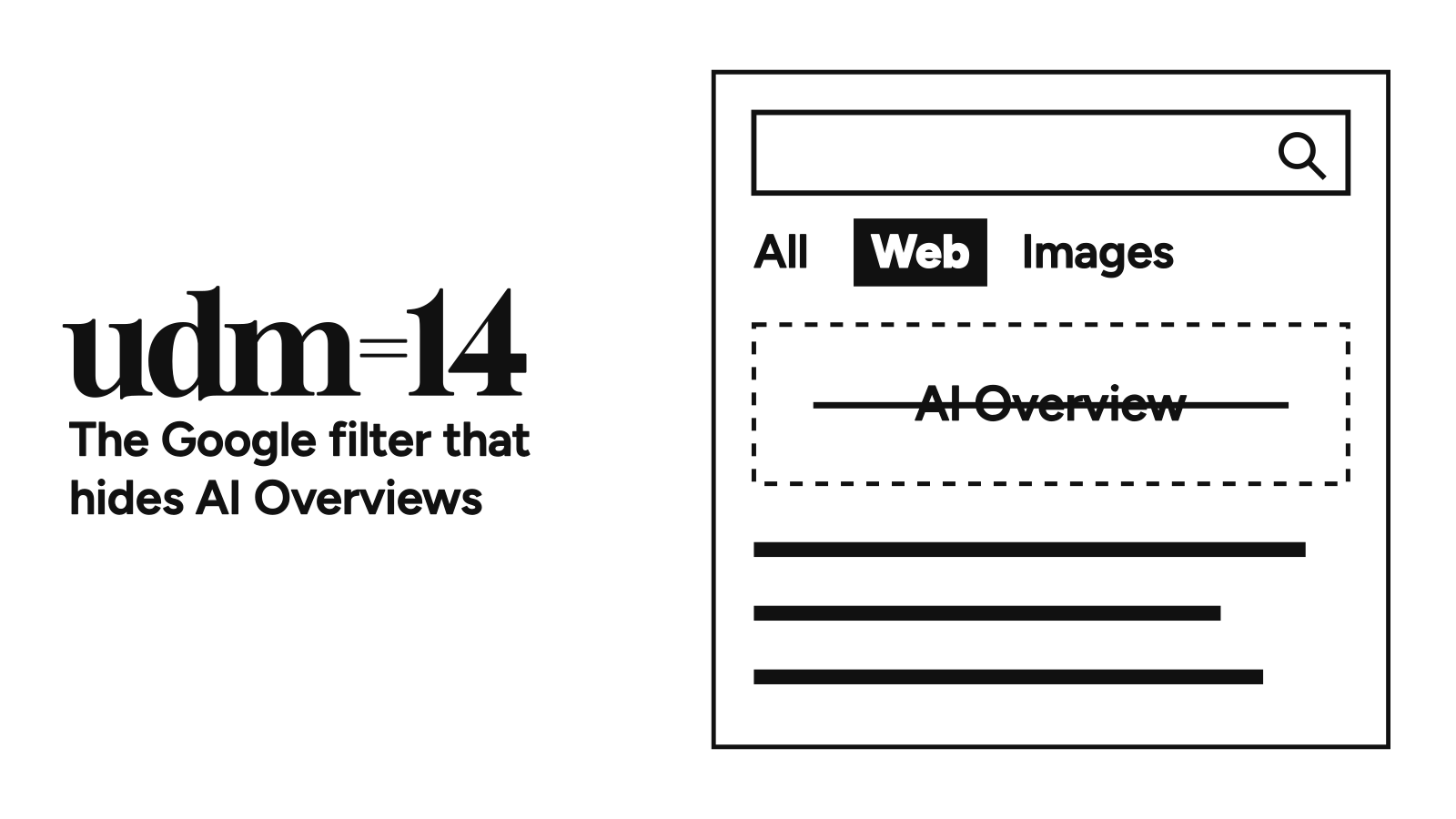
If you came here looking for how to turn off AI Overview with one toggle, I hate to break it to you—there isn’t one. Google’s own help page says so in plain words: AI Overviews are “a core Google Search feature” and “features cannot be turned off.”
What Google does give you is a side door: the Web filter, which strips the AI box out of your results. Make it your default and the box stays gone.
How to Turn Off AI Overview: The Quick Answer
- One search at a time: After you search, click Web in the row of filters under the search bar (it sometimes hides under More).
- Every search, on a computer: Add a custom search engine with this URL and make it your default:
https://www.google.com/search?q=%s&udm=14. Theudm=14part is what opens the Web filter. - Every search, on a phone: Set your browser’s homepage (or a bookmark) to
https://www.google.com/search?q=+&udm=14and search from that page. It’s Google’s own URL, with nothing third-party involved. - Skip Google: Search from
noai.duckduckgo.com, which turns off all of DuckDuckGo’s AI features.
Steps checked November 15, 2026.
Can You Turn Off Google AI Overview?
No. There’s no setting, account toggle, or Labs switch that removes AI Overviews from Google Search. The AI Overviews help page puts them in the same bucket as knowledge panels, as a built-in part of Search.
You might spot an “AI in Search” toggle in Google Labs. Turning it off only opts you out of Google’s experiments. Google calls Labs its “testbed for innovation” and files AI Overviews under core Search, so that switch won’t touch them.
It’s still worth switching off. Open labs.google.com/search/manage while signed in and turn the experiments off, and Google won’t enroll you in future AI Search experiments.
The same help page does point to the escape hatch: the Web filter “displays only text-based links without features like AI Overviews.” Every workaround below is a way of landing on that filter automatically.
The Workarounds That Work on Desktop
Use the Web Filter on One Search
Search as usual, then click Web in the filter row. Google says the filters and their order shift with each query, so if Web isn’t showing, check More.
That works fine—until you have to do it on every single search.
Make Udm=14 Your Default Search
Google’s results URL takes a parameter called udm. Set it to 14 and you land straight on the Web filter. Every desktop browser below lets you save that as your default search engine:
| Browser | Where to add it | URL to paste | Make it the default |
|---|---|---|---|
| Chrome (Google’s steps) | Settings → Search engine → Manage search engines and site search (or chrome://settings/searchEngines), then Add next to Site search |
{google:baseURL}search?q=%s&udm=14 |
More (three dots) next to the new entry → Make default |
| Firefox 140 and later (Mozilla’s steps) | Settings → Search → Additional search engines → Add search engine | https://www.google.com/search?q=%s&udm=14 |
Pick it under Default Search Engine at the top of the same page |
| Edge (Microsoft’s steps) | Settings and more → Settings → Privacy, search, and services → Search and connected services → Address bar and search → Manage search engines → Add | https://www.google.com/search?q=%s&udm=14 |
Three-dot menu next to it → Make default |
| Any browser, one search | Nothing to set up | Add &udm=14 to the end of a Google results URL and press Enter |
Bookmark the result if you want it handy |
Give it a name like Google Web and, in Chrome, a shortcut like @web. On an older Firefox, the third-party site tenbluelinks.org can add the same engine from a right-click on the address bar; use it at your own risk. Google notes that a work or school Chrome profile may lock your search engine, so this can fail on a managed laptop.
It’s still the fix people trade. In early November, a Hacker News commenter said he hadn’t seen an AI summary from Google since making a udm=14 search his Firefox default. The same week, a Bluesky reminder about udm=14 drew replies pointing to udm14.com, which does the same thing without any setup, and to search engines that don’t need the workaround at all.
What Works on Your Phone
Phones are where this gets janky. Mobile Chrome won’t let you type in a custom search URL, and Safari only lets you pick from Apple’s list.
| Phone and browser | How to get the Web filter by default | Effort |
|---|---|---|
| Chrome on Android | ⋮ → Settings → Homepage → Enter custom web address, paste https://www.google.com/search?q=+&udm=14, then search from the homepage |
One minute |
| Chrome on iPhone | Open the same URL, bookmark it, and start your searches from that bookmark | One minute |
| Firefox on Android | Tap the search engine icon in the address bar → Search settings → Default search engine → Add search engine, paste the udm=14 URL, tap Save, then select it as default (Mozilla’s steps) | Two minutes |
| Firefox on iPhone | Menu → Settings → Search → Add Search Engine, paste the udm=14 URL, then tap the current default and switch (Mozilla’s page dates from 2022, so menu names may differ) | Two minutes |
| Safari on iPhone | Open the same URL, tap Share → Add to Home Screen (or bookmark it), and start your searches from there | One minute |
The homepage URL is Google’s own. It opens an empty results page with the Web filter already on. The page says your search didn’t match any documents, which is fine: the search box is blank, and anything you type into it stays on that web filter. The shorter google.com/?udm=14 doesn’t work, because Google drops the filter as soon as you search.
The limit in Chrome and Safari is the address bar. Searches you type there still go to regular Google, so start from the homepage or the bookmark.
Third-party tools can cover the address bar too. tenbluelinks.org adds a Google Web option to Chrome’s search engine list on Android and iPhone, and the free udm14 for Safari extension redirects Safari’s Google searches to the Web filter. Neither comes from Google, so use them at your own risk.
None of this touches the Google app or the search bar on your Android home screen. Neither has a setting that loads the Web filter by default, so search from your browser instead. To get Gemini off that phone too, see how to turn off Gemini on Android.
Extensions That Hide AI Overviews
If you’d rather keep normal Google results and just delete the AI box, an extension can do it.
- AI Overview Hider for Google removes the AI Overview section and leaves the rest of the page alone. Its code is on GitHub, with versions for Chrome, Firefox, Edge, and Safari, plus Firefox and Edge on Android.
- udm14 for Safari (free) and Smpl for Safari ($1.99) redirect Google searches to the Web filter.
- DuckDuckGo No-AI Search (Chrome and Firefox) swaps your default search for DuckDuckGo’s AI-free version. That one leaves Google behind.
Any extension that edits Google pages needs permission to read them, so stick with one that publishes its code or comes from a company you already trust with your searches. Hiders that strip the box after the page loads can also break whenever Google changes its page code. Redirect-style ones that just add udm=14 don’t have that problem.
The Tricks People Say Stopped Working
| Trick | What people report |
|---|---|
| Swearing in your search | Lifehacker’s Jake Peterson wrote in 2025 that Google now shows the overview anyway and ignores the vulgarity. |
Adding -ai |
Mixed. Google’s own forum volunteers still suggest it, and PCMag says it works in the Google app too. But in an October r/antiai post, one user found it had stopped working on their PC while it still worked on their phone. And an r/techsupport user in October found it cleared the top box but left AI answers in the People also ask section |
Even when -ai works, there’s a cost. The minus sign tells Google to drop every page that contains the word “ai,” which is a lot of the web in 2026. Fine for a recipe, bad for anything about tech.
udm=14 has a weak spot of its own: Google never documented it, so it could stop working any day.
The Catch With the Web Filter
The Web filter drops the AI box along with the whole tray of extras (knowledge panels, weather cards, and quick facts) and gives you plain links. That includes the AI answers tucked into People also ask.
For most searches, that’s the point. When you do want a quick conversion or a sports score, click All at the top to get the regular page back for that one search.
Stop Search From Training on Your Uploads
Hiding the AI box doesn’t change what Google does with what you feed Search. Google says media you save to Search Services History—Lens photos, voice searches, files, and Search Live recordings—can be used to train the models behind AI Mode, Lens, and Translate. Two checkboxes at myactivity.google.com/search-services/settings control it:
| Setting | What turning it off does | What it doesn’t do |
|---|---|---|
| Save Media | Stops new images, files, audio, and video from being saved with your Search history | Doesn’t delete media already saved, which Google can keep using until you delete it |
| Allow review of saved media | Stops human reviewers from looking at your saved media to help train Google’s AI | Doesn’t stop saving; turn off Save Media for that |
Media that’s already gone into training is disconnected from your account and kept for up to four years, so delete your saved media from the same page if you want it out of the pool.
Google is still rolling these settings out. If you don’t see them, your history is still under Web & App Activity.
Search Engines That Skip It
If the workarounds feel like a fight with Google, quit the fight:
| Engine | AI by default? | How to switch it off | Cost |
|---|---|---|---|
| DuckDuckGo | Search Assist shows “sometimes” | Search from noai.duckduckgo.com, which turns off Search Assist and Duck.ai and filters AI images; or set Search Assist to Never in settings |
Free |
| Kagi | Quick Answer runs automatically when a query ends in “?” | Turn off Auto Quick Answer at kagi.com/settings/ai |
Free trial (100 searches), then from $5/month |
Kagi’s results are ad-free, which is why it charges.
Google built a filter that hides its own AI, then left it out of Settings so you have to wire it in yourself.

Ali Arslan
Ali began his journey as a full-time Tech Journalist in 2021. He’s been a tech enthusiast all his life, starting with a 286 PC gifted to him at the age of 7.
With time, he’s grown into a power user of Android, Linux, Windows, and all things AI, which are the main focus of his writing here at Tech Unbloated. He’s also got a proficient track record for bricking (and sometimes unbricking) Android phones while trying to push the hardware and software to their limits.
Ali has an Advanced Diploma in Business Management from London, UK, and is an English Literature graduate from Punjab University, Pakistan. Other than Tech Unbloated, he’s written for big tech publications like MakeTechEasier, MakeUseOf, How-To Geek, and LimeWire—however, most of his previous work was as a ghostwriter for high-profile clients.
Before becoming a full-time writer, Ali tried his luck at music production, graphic design, teaching, business management, web development, and dropshipping. His writing often reflects all these experiences he’s had in life.
Discussion
Corrections, disagreements, and the thing I missed. Comments are read before they go up.
No comments yet. Go on—be first, and make it count.
Comments stay off until you say so.
Enable comments in cookie preferences to read and join the thread. No login. No ads in the box.