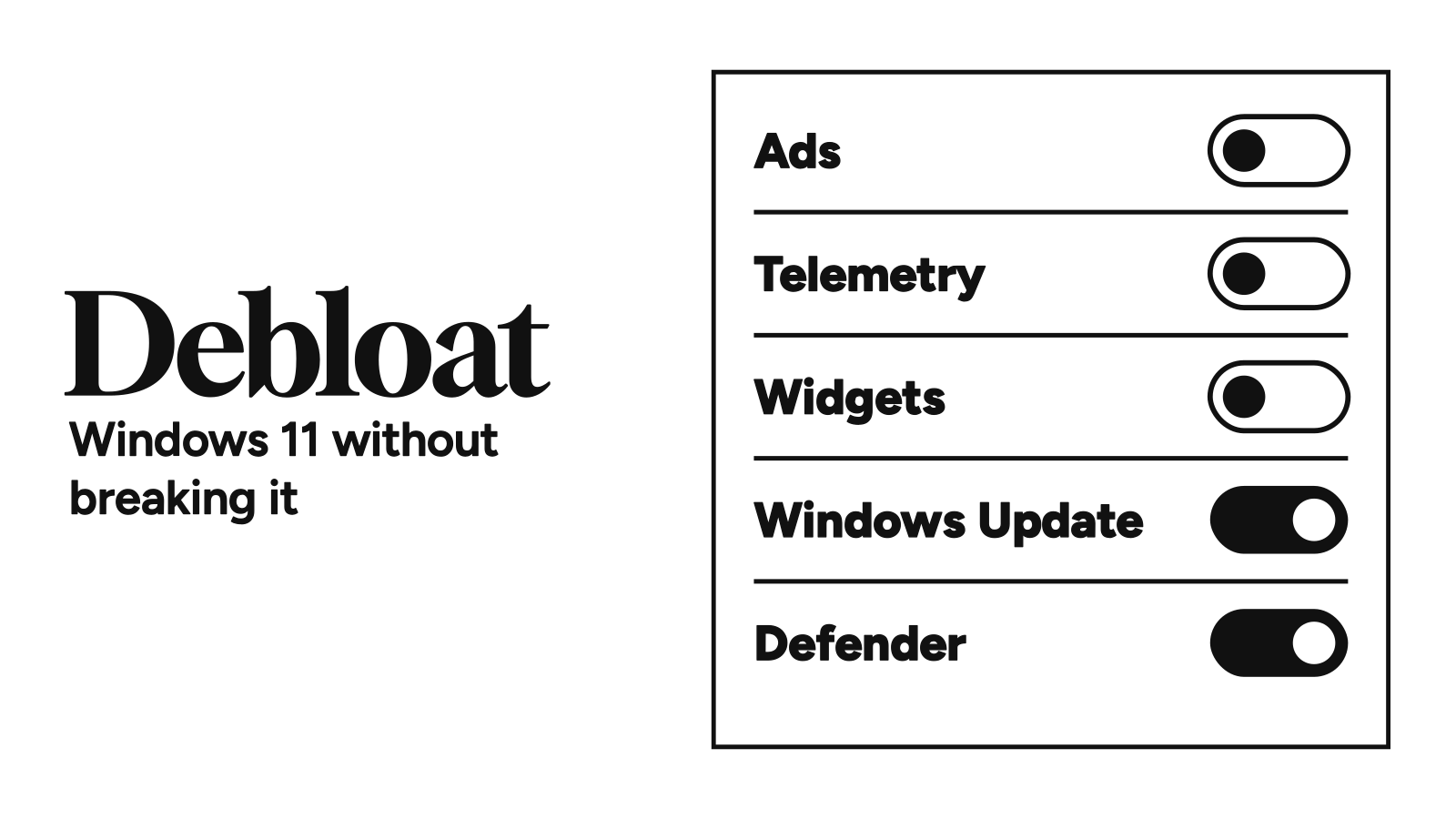
Every popular Windows 11 debloat tool opens the same way. It asks for administrator rights.
That prompt is the whole safety question. Click yes, and a script you probably haven’t read gets to rewrite your registry, your services, and your app list in one go. Usually that’s fine—until it strips something Windows depended on.
The order I’d trust to debloat Windows 11 is Microsoft’s own switches first, then one of two tools that tell you what every switch does before you flip it. Oh, and you’ll see what broke for the people who ran these tools.
Quick Answer
- Is it safe? Yes, if you make a restore point first, stay with removable apps and privacy toggles, and pick a tool that shows you every change and can undo it. It gets risky when a tool disables Windows Update or Defender, or rips out components you can’t reinstall.
- No-tool route: uninstall apps in Settings → Apps → Installed apps, kill startup apps in Settings → Apps → Startup, and switch off ads and suggestions in Privacy & security → Recommendations & offers.
- The two tools worth using: Chris Titus Tech’s WinUtil is the best one, but it launches from an admin terminal and goes deep. Wintoys is the easy alternative, a regular app from the Microsoft Store. Both are free, and both explain what each toggle does, so you know what you’re changing and how to change it back.
Tool versions and menu paths checked November 15, 2026.
Is It Safe to Debloat Windows 11?
Mostly, yes. Removing Clipchamp or switching off Start menu ads won’t break anything. Microsoft lets you do both from Settings.
The danger is in the deep end. Microsoft says System Protection isn’t turned on by default, so a lot of PCs have no restore point to fall back on when a tweak goes wrong. Fix that before you touch anything else.
A tweak that only hides an ad is cheap to undo. A tweak that deletes a component is a reinstall waiting to happen.
What Counts as Bloatware on a Fresh Install
Bloat on Windows 11 comes in four flavors, and only one of them is really “apps”:
| Type | Examples | Who targets it |
|---|---|---|
| Preinstalled Microsoft apps | Clipchamp, Solitaire, Microsoft News, Weather, To Do, Feedback Hub, and the Microsoft 365 Copilot hub | WinUtil’s default app-removal list and Wintoys’ app uninstaller |
| OEM apps | Dell SupportAssist, HP’s support and setup tools, and Acer’s registration app | Settings, or Wintoys’ app uninstaller |
| Ads and nudges | Tips, suggested content, Start menu recommendations, and personalized offers built on your diagnostic data | Settings (below), or either tool |
| AI features | Copilot, Recall, and Click to Do | WinUtil’s Windows AI - Disable And Remove tweak; Wintoys’ Artificial intelligence section |
The Windows 11 bloatware that actually costs you speed is usually whatever starts with Windows.
How to Debloat Windows 11 Without Third-Party Tools
This is the route for anyone who doesn’t want to paste a script into an admin terminal. Every step below is a Microsoft-supported setting, and it’s what most of the top replies in a September 2026 r/Windows11 thread boiled down to: uninstall what you don’t want in Settings (or with winget uninstall), and leave the rest. A Windows 11 user on Bluesky said the same in November: uninstall the apps, change the settings, and skip the scripts to avoid breakage.
- Make a restore point. Press Start, type Create a restore point, and open it. On the System Protection tab, select Configure… → Turn on system protection → Apply. Then select Create…, name it, and select Create.
- Remove the apps you don’t use. Go to Settings → Apps → Installed apps, find the app, select More (the three dots) → Uninstall. Microsoft notes that some apps won’t uninstall from Settings, and points you to Control Panel → Programs → Programs and Features for those.
- Cut the startup list. Go to Settings → Apps → Startup and switch off anything you don’t need at sign-in. Task Manager’s Startup apps tab shows the same list with an impact rating. Microsoft rates an app High impact when it uses more than one second of CPU or more than 3MB of disk at startup.
- Turn off the ad plumbing. Go to Settings → Privacy & security → Recommendations & offers and switch off Let apps show my personalized ads by using my advertising ID, Let Windows improve Start and search results by tracking app launches, and Show me suggested content in the Settings app. While you’re in Privacy & security, open Personalized offers and turn off Get personalized tips, ads, and recommendations based on my Windows activity.
- Drop optional telemetry. Go to Settings → Privacy & security → Diagnostics & feedback and set Diagnostic data so optional data isn’t sent. Microsoft says your PC stays “just as secure” and works normally without it.
- Clean up Start and the taskbar. In Settings → Personalization → Start, turn off Show recommendations for tips, shortcuts, new apps, and more (some builds also show Show tips and app recommendations, so turn that off too). In Settings → Personalization → Taskbar, switch Widgets off under Taskbar items.
- For stubborn Store apps, use PowerShell. Run
Get-AppxPackage *clipchamp*to find the package, then pipe it intoRemove-AppxPackageto remove it from your account. Add-WhatIffirst if you want a dry run.
You can undo every bit of it by flipping a switch back or reinstalling from the Store.
The Best Windows 11 Debloat Tools, Compared
If the manual route feels like a chore, these are the two Windows 11 debloat tools I’d point a friend to. Both run on Windows 10 too.
| Tool | How you run it | How you undo it | What to watch |
|---|---|---|---|
| WinUtil (Chris Titus Tech), 26.11.13 | One command in an admin terminal | Undo Selected Tweaks, or System Restore | Advanced tweaks remove Edge, OneDrive, and Windows AI |
| Wintoys (Bogdan Patraucean), 3.0.10.0 | Install it from the Microsoft Store | Flip the toggle back | Closed source; removed apps need a reinstall |
- WinUtil also installs apps, manages Windows Update settings, and builds a Windows 11 ISO.
- Wintoys also cleans up storage, runs Windows’ repair tools, and shows which services you can switch off.
Is the Chris Titus Tool Safe?
WinUtil’s own FAQ says yes, with conditions: run it from the official GitHub source, make a restore point, and understand each tweak before you apply it.
It’s the more advanced of the two because it starts in a terminal. You open PowerShell as admin and run irm https://christitus.com/win | iex. After that one line, you’re in a regular window with tabs and checkboxes.
Nearly every tweak comes with a short description of what it changes. The project splits them into Essential and Advanced, and the Advanced group carries a “CAUTION” label. Changed your mind? Select the tweak and hit Undo Selected Tweaks.
The presets aren’t equal on safety, though. Standard and Advanced include a restore point. Minimal doesn’t.
Two things to know. First, that command downloads the latest script every time you run it, so you’re trusting that domain on every launch. Second, tweaks can stop working when Microsoft changes Windows—WinUtil’s known-issues page says its Revert Start Menu tweak broke for good with update KB5089573 in May 2026.
The GitHub issues show the same pattern. In October 2026, a user who built a 26H2 installer with WinUtil’s Win11 Creator said Windows Update was blocked on the fresh install, and still failed after they turned the update services back on. Another user on 25H2 and 26H2 ISOs said they hit it too. A contributor has since said a fix is merged for future Win11 Creator installs.
Plenty of people run it without trouble. One commenter in that September r/Windows11 thread said they’ve used WinUtil and O&O ShutUp10 for years and won’t stop. The issues just tell you which checkboxes to read twice.
Is Wintoys Safe?
It’s the easy one. Wintoys installs from the Microsoft Store like any other app, so there’s no command to paste. It still asks for administrator rights.
Settings are toggles, and hovering over one brings up a tooltip that says what it does. On the services page, a question mark sits next to each service to nudge you into reading its description before you disable it.
Undoing is the same toggle, flipped back. Since version 3.0, a restore settings dialog also lists everything you’ve changed since first launch, per the changelog.
Two catches. Wintoys is closed source. The developer’s FAQ says that’s partly to stop copycats, and it mentions GitHub repos pushing malware as a “pro version” that doesn’t exist. So get it from the Store and nowhere else.
And it won’t make a restore point for you. Its welcome screen recommends one and opens Windows’ own Create a restore point window, so use it. One Bluesky user called Wintoys “very cool” in August and still told people to make a restore point before using it.
The app is free. A paid add-on, Wintoys+, adds one-click settings profiles.
Red Flags in a Windows 11 Debloat Script
| Do | Don’t |
|---|---|
| Use a tool with a named developer and a public changelog | Run an .exe from a forum post or a video description |
| Get it from the official source: WinUtil’s GitHub page, or Wintoys’ Microsoft Store listing | Grab a renamed copy from a mirror or a file-sharing site |
| Pick a tool that lists every change before applying it | Trust a one-click “optimize everything” button |
| Make sure it has an undo, a backup, or a restore point | Use anything that tells you to switch off Defender first |
| Install Windows from Microsoft’s own ISO | Install a prebuilt “lite” Windows ISO from a stranger |
One more: if your antivirus flags a known tool, check the project’s GitHub issues for a false-positive report before you panic.
What to Leave Alone
Some of what looks like bloat is load-bearing. These are the switches I’d skip, even when a tool offers them:
| Leave alone | Why |
|---|---|
| Windows Update and Defender | They’re your security, and Microsoft ships its fixes through both. |
| Required diagnostic data | You can turn off optional data, but Microsoft only offers Diagnostic data off on Enterprise, Education, and Server editions. On Home and Pro there’s no supported zero, and Microsoft recommends at least Required for anyone relying on Windows Update. |
| BitLocker device encryption | WinUtil lists BitLocker - Disable among its Essential tweaks. On a laptop that could get lost, I’d keep it on. |
| Get Help | It’s on WinUtil’s default app-removal list, and Microsoft is moving Windows troubleshooters into it. |
| Edge, if you’re not sure | WinUtil’s Advanced tweaks can remove it. If you need it back, Microsoft’s Edge download page has the installer. |
| svchost.exe splitting, if you game | WinUtil’s tweaks guide says disabling it can interfere with Xbox services. |
What Other Users Say
On Reddit, Hacker News, Bluesky, and GitHub issues, here’s where people land.
Settings is enough. That’s most of the top replies in the r/Windows11 thread, and that Bluesky user.
Debloat a fresh install, not a lived-in one. A Hacker News commenter lost a Minecraft Bedrock world, two weeks of building, when a Windows 10 debloater removed every Store app, the game included.
FAQ
Does debloating Windows 11 make it faster? Cutting startup apps is the change most likely to help, and you can do it in Settings. Removing apps you never open mostly frees disk space. Neither tool publishes before-and-after benchmarks.
Will Windows updates undo my debloat? It can. WinUtil’s known-issues page lists a tweak that stopped working after a Windows update.
Should I rerun a debloat tool after a big Windows update? Only for the settings that came back. Rerun the same choices you made before, and make a fresh restore point first.
What’s the safest debloat tool? Wintoys, as long as you stay with its toggles, since undoing one means flipping it back. In WinUtil, the Standard preset is the careful pick: it includes a restore point and leaves the Advanced tweaks alone. Still make your own restore point.
Microsoft puts the off switches for its ads right there in Settings. It just doesn’t turn System Protection on for you—and that’s the one switch a debloat needs.

Ali Arslan
Ali began his journey as a full-time Tech Journalist in 2021. He’s been a tech enthusiast all his life, starting with a 286 PC gifted to him at the age of 7.
With time, he’s grown into a power user of Android, Linux, Windows, and all things AI, which are the main focus of his writing here at Tech Unbloated. He’s also got a proficient track record for bricking (and sometimes unbricking) Android phones while trying to push the hardware and software to their limits.
Ali has an Advanced Diploma in Business Management from London, UK, and is an English Literature graduate from Punjab University, Pakistan. Other than Tech Unbloated, he’s written for big tech publications like MakeTechEasier, MakeUseOf, How-To Geek, and LimeWire—however, most of his previous work was as a ghostwriter for high-profile clients.
Before becoming a full-time writer, Ali tried his luck at music production, graphic design, teaching, business management, web development, and dropshipping. His writing often reflects all these experiences he’s had in life.
Discussion
Corrections, disagreements, and the thing I missed. Comments are read before they go up.
No comments yet. Go on—be first, and make it count.
Comments stay off until you say so.
Enable comments in cookie preferences to read and join the thread. No login. No ads in the box.