Search “how to speed up Windows 11” and you get the same list of tips on site after site, in a slightly different order, with no hint of which ones matter on your PC. Even Microsoft’s own support page lists twelve fixes and tells you to try them all.
So spend five minutes finding out what’s actually slow first. Then fix that one thing (and skip the “speed-up” tricks that do nothing).
Quick Answer
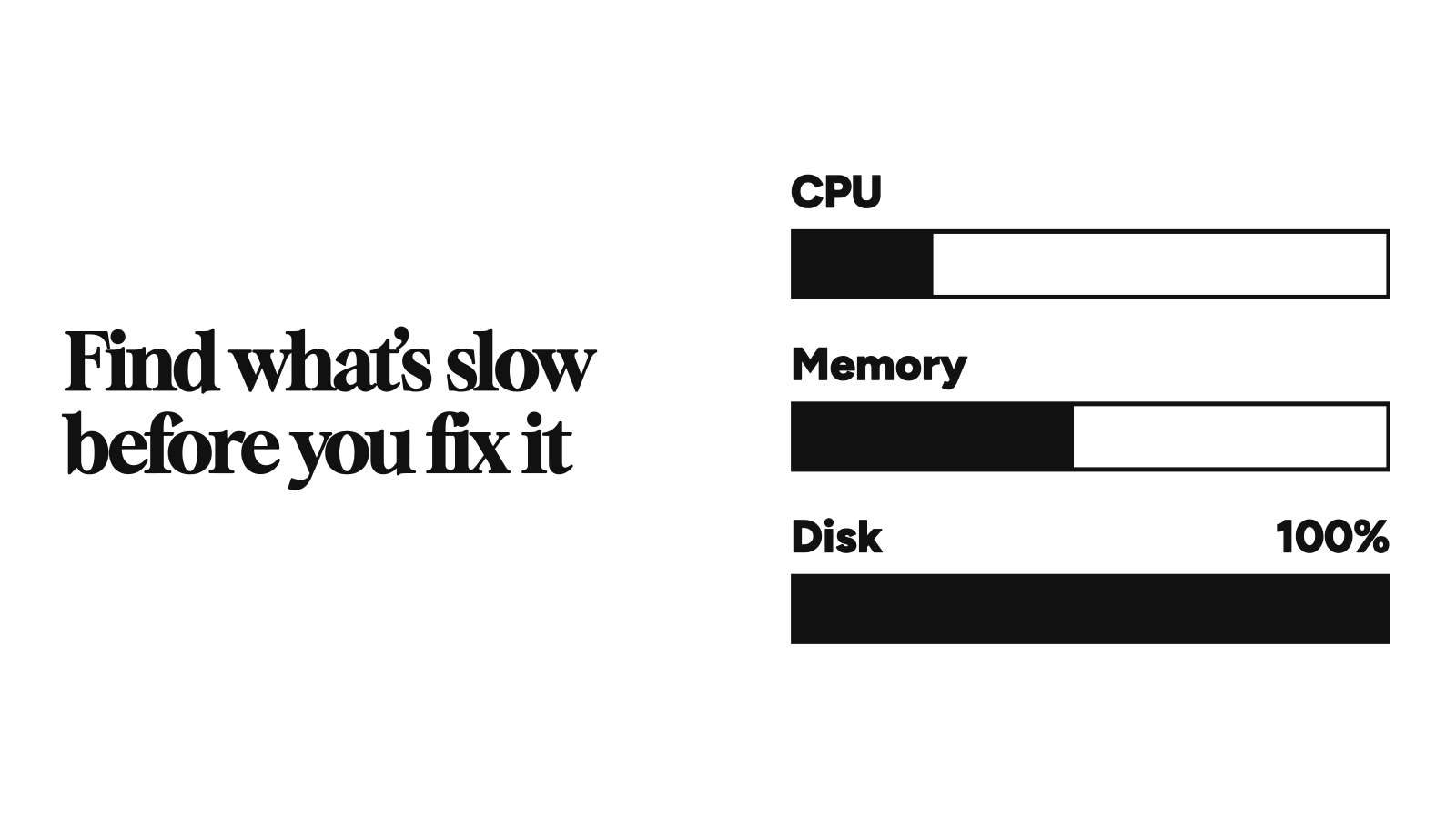
- Find the cause first: press Ctrl + Shift + Esc to open Task Manager and check which of CPU, memory, or disk sits near 100% while the PC feels slow.
- Cut startup apps: Settings → Apps → Startup, and turn off anything you don’t need the moment you sign in.
- Free up disk space: search Start for Disk Cleanup, then select Clean up system files to clear old Windows installs and update leftovers too.
- Update Windows and drivers: Settings → Windows Update → Check for updates, then Advanced options → Optional updates.
- Still on a hard drive? Swapping it for an SSD is the fix owners name first, on Reddit and Hacker News alike.
- Skip registry cleaners and RAM “boosters.” Microsoft doesn’t support the first, and the second fights how Windows uses memory.
Menu paths checked against Microsoft Support on November 15, 2026.
Why Is Windows 11 So Slow?
Microsoft’s Tips to improve PC performance in Windows lists the usual suspects: low storage space, too many startup apps, outdated software, and hardware that can’t keep up with what you ask of it. Its malware-scan step adds one more, since malware can eat CPU and disk time in the background.
Hardware is the one people forget. Microsoft’s Windows 11 specifications set the floor at 4GB of RAM and a 64GB drive. That’s the minimum to install it, not to run it comfortably with a browser full of tabs.
Microsoft also suggests watching CPU, memory, and disk in Task Manager to find what’s heavy. Press Ctrl + Shift + Esc, open the Performance tab while the slowdown is happening, and read it like this (my rule of thumb, not Microsoft’s):
| What Task Manager shows | Likely cause | Start here |
|---|---|---|
| Disk at or near 100% | A hard drive, updates installing in the background, or malware | Malware scan, then the SSD row below |
| Memory nearly full | More open than your RAM can hold, or one app leaking | Processes tab, browser tabs, then RAM |
| CPU pinned | One app or process working flat out | Processes tab, sorted by CPU |
| All three calm, but boot drags | Startup apps | The startup row in the next table |
How to Speed Up Windows 11: The Fixes Worth Your Time
Cheapest and safest first (my order, not Microsoft’s):
| Fix | Where it lives in Windows 11 | What it helps | The catch |
|---|---|---|---|
| Turn off startup apps | Settings → Apps → Startup | Background load after sign-in | You lose auto-sync for apps like cloud storage until you open them |
| Free up disk space | Settings → System → Storage → Storage Sense → Run Storage Sense now | Low-space slowdowns | Look over the Temporary files list before you remove anything |
| Clear old Windows and update leftovers | Search Start for Disk Cleanup → Clean up system files → check Previous Windows installation(s) and Windows Update Cleanup | Space that upgrades and updates leave behind | With the previous installation gone, you can’t roll back to it |
| Install updates and optional drivers | Settings → Windows Update → Check for updates, then Advanced options → Optional updates | Fixes and performance improvements | The PC may restart |
| Run a malware scan | Settings → Privacy & security → Windows Security → Virus & threat protection → Quick scan | Unexplained CPU or disk use | None worth naming |
| Uninstall apps you don’t use | Settings → Apps → Installed apps → … → Uninstall | Disk space and background activity | None, if you really don’t use them |
| Stop an app running in the background | Settings → Apps → Installed apps → … → Advanced options → Let this app run in the background → Never | Background CPU and memory | The app can’t refresh or notify you until you open it |
| Close what you’re not using, then restart | Start → Power → Restart | Memory piled up from long sessions | You reopen your apps |
| Turn off app notifications | Settings → System → Notifications | Interruptions, plus what Microsoft calls small performance gains | You miss alerts from those apps |
| Put browser tabs to sleep | Edge: Settings → System and performance → Optimize Performance (sleeping tabs). Chrome: Settings → Performance → Memory Saver | Memory eaten by tabs you aren’t looking at | A sleeping tab reloads when you return to it |
| Turn off visual effects | Search Start for Adjust the appearance and performance of Windows → Visual Effects → Adjust for best performance, or Custom to keep the effects you like | Sluggish animations on weak graphics | Windows looks plainer |
| Set Power mode to Best performance | Settings → System → Power & battery → Power mode | CPU speed under load | Microsoft warns it drains laptop batteries faster and runs warmer |
Task Manager’s Startup apps tab is the better place to decide what to cut, because it shows an impact rating for each app. Microsoft defines High impact as more than 1 second of CPU time or more than 3MB of disk reads at startup, and Low impact as under 300 milliseconds and 292KB. Start with the High ones you don’t recognize as essential.
Microsoft’s page also pushes its free PC Manager app for cleanup and startup control. You don’t need it for anything in the table above.
The old Disk Cleanup app is still the best way to clean up Windows. Its Clean up system files button is the advanced part. It rescans the drive and adds system files to the list, like a previous Windows installation and Windows Update leftovers.
And if the clutter is preinstalled apps, ads, and Copilot, that’s a debloat job. I’ve covered how to debloat Windows 11 safely separately.
What Windows 11 Owners Say Actually Helped
Microsoft’s list tells you what can help. Owners and testers are blunter about what did.
| Change | What happened | Who said it |
|---|---|---|
| Disabling six startup apps | Time-to-desktop went from 49.29 to 49.18 seconds; RAM in use five minutes after boot fell from 6.8GB to 6.1GB | How-To Geek’s November test on an ASUS laptop |
| Best performance power mode | 0.63% ahead of Balanced in a CPU benchmark; the Ultimate Performance plan scored lower | Same How-To Geek test |
| Turning off animations | The Start menu skipped its transition; nothing else felt quicker | Same How-To Geek test |
| File Explorer opening to This PC | Home, the default, paints more slowly when cloud files are in it; This PC is a two-click switch in Explorer’s Options | Top reply in an April r/Windows11 thread on a snappier Windows 11 |
| Memory Integrity off on older CPUs | Chips Windows 11 doesn’t officially support lack the hardware help to run it well | Same r/Windows11 reply |
| Hard drive to SSD | A 2018 HP laptop took five minutes to power on and open a browser, with its 5,200 RPM drive stuck at 100% disk. Cloning it to a spare SSD made Windows “zippy and very usable again” | A January Hacker News comment |
So cut startup apps for a calmer PC, not a faster boot. Memory Integrity is a real security protection, so I’d only switch it off on an unsupported PC that’s clearly struggling. And if you’re still on a spinning hard drive, that’s the fix. Everything else is rounding error next to it.
Windows 11 Optimization Myths That Waste Your Evening
These tweaks show up all over forum threads and YouTube “100% working” videos. I’d skip all of them.
| The tweak | The pitch | What actually happens |
|---|---|---|
| Registry cleaners | A “cleaner” registry means a faster PC | Microsoft’s support policy for registry cleaning utilities (KB2563254) says it doesn’t support them and warns a bad edit can leave you reinstalling Windows. Neowin adds there’s no hard evidence they speed anything up |
| RAM cleaners and “memory boosters” | Free up RAM Windows is “wasting” | A lot of that memory is cache. Microsoft’s performance team explains that “standby” pages are kept “just in case” and handed over first when an app needs more. Empty them and Windows reads that data from disk again, which is slower |
| Turning off Game Mode | It holds back your PC even when you don’t game | Microsoft’s Game Mode page says it acts “when you’re running a game”: it holds off driver installs and restart notifications, and steadies frame rates. With no game open, there’s nothing for it to do |
| Defragmenting your SSD by hand | A defrag makes any drive faster | Windows already runs drive optimization as a weekly maintenance task. Microsoft’s defrag documentation says it gives SSDs a defrag and retrim once a month on its own, and a manual defrag makes the next scheduled run skip that drive |
| “Debloated” builds like Tiny11 and Atlas OS | A stripped install is free speed | A November r/Windows11 poster who tested Tiny11 on 26H2 saw lower CPU and disk use, but RAM use about the same as regular Windows 11. Replies said they’d noticed no real speedup, and one said trimming startup apps in Task Manager is what made the difference |
Leave the registry and the defrag schedule alone. Your evening has better uses.
Windows 11 Slow After an Update?
Updates are the slowdown with the most obvious timing: it was fine Tuesday, then it wasn’t.
Before blaming the update, check the Windows release health page for your version. Microsoft lists known issues there, with the update that caused each one and its status. As of October 28, 2026, Microsoft says Windows 11 version 26H2 is available for all eligible devices, so make sure you’re reading the page for the version you actually run.
Also check which version that is. Microsoft’s August update notes say Home and Pro editions of version 24H2 reached end of updates on October 13, 2026. If you’re still on it, you’re not getting fixes for known issues anymore.
If the slowdown started right after an update and the release health page backs that up, remove the update:
- Go to Settings → Windows Update → Update history.
- Under Related settings, select Uninstall updates.
- Pick the update and select Uninstall.
Some updates can’t be removed, and Microsoft says to understand the risks before you pull a security update. If Windows won’t start properly, the same option lives in the recovery environment under Troubleshoot → Advanced options → Uninstall Updates.
Windows 11 Slow Startup and File Explorer
Slow startup almost always comes back to the startup list above, so start with Task Manager’s impact ratings.
File Explorer is the slowdown Microsoft has openly admitted.
In March 2026, Microsoft’s Windows team named a faster, more dependable File Explorer as one of its quality priorities for the year. The June 23, 2026 optional update, KB5095093, lists “Improves the speed and performance of File Explorer launch,” rolling out gradually.
In July, Microsoft said its wider quality fixes would start reaching Windows 11 PCs more broadly this fall, and added cutting Windows’ memory footprint on 8GB-and-up PCs as a new focus.
Users had noticed. One Hacker News commenter said in September that a folder of mixed files takes 10 seconds to load in Windows 11’s Explorer, against under a second in Windows 10. A Bluesky user counted 20 seconds for Explorer to open on their mom’s work PC.
App launches got a similar push. Windows Latest found that after the August security update (KB5121003), Windows briefly spikes the CPU toward full clock speed for one to three seconds when you open an app, and that apps opened faster in its before-and-after test.
“Low Latency Profile” is the name Windows Latest and other outlets use for it. Microsoft’s KB5121003 notes don’t mention the feature at all, and it rolls out gradually with no Settings toggle.
So if Explorer or app launches drag, staying current on updates is the most direct fix you have. The rest is Microsoft’s homework.
When to Stop Tweaking and Reset
If you’ve done the diagnosis and the fixes above and Windows is still sluggish, a reset beats another weekend of tinkering. Microsoft’s own tips page admits older hardware may not improve much, and says an upgrade may be the best long-term answer there.
To reset, go to Settings → System → Recovery → Reset PC, then pick one:
| Option | Your files | Your apps and settings |
|---|---|---|
| Keep my files | Kept | Removed |
| Remove everything | Removed | Removed |
Back up first either way, and if the drive uses BitLocker, find your recovery key before you start. Microsoft warns the screen can go black for upwards of 15 minutes during a reset, and restarting the PC yourself mid-reset can make it fail.
Microsoft spent 2026 publicly promising to make Windows 11 faster. The slowness was never all your fault.

Ali Arslan
Ali began his journey as a full-time Tech Journalist in 2021. He’s been a tech enthusiast all his life, starting with a 286 PC gifted to him at the age of 7.
With time, he’s grown into a power user of Android, Linux, Windows, and all things AI, which are the main focus of his writing here at Tech Unbloated. He’s also got a proficient track record for bricking (and sometimes unbricking) Android phones while trying to push the hardware and software to their limits.
Ali has an Advanced Diploma in Business Management from London, UK, and is an English Literature graduate from Punjab University, Pakistan. Other than Tech Unbloated, he’s written for big tech publications like MakeTechEasier, MakeUseOf, How-To Geek, and LimeWire—however, most of his previous work was as a ghostwriter for high-profile clients.
Before becoming a full-time writer, Ali tried his luck at music production, graphic design, teaching, business management, web development, and dropshipping. His writing often reflects all these experiences he’s had in life.
Discussion
Corrections, disagreements, and the thing I missed. Comments are read before they go up.
No comments yet. Go on—be first, and make it count.
Comments stay off until you say so.
Enable comments in cookie preferences to read and join the thread. No login. No ads in the box.